

Please get in touch with help@vinosmith.com to enable this setting. This feature is for Vinosmith instances with only one supplier.
When first using, please try this with a small test batch (a couple of orders). If a test batch with a larger number of orders is incorrect, it would take more effort and time to resolve manually.
How to Use This Feature
Batch-Edit Operation on the Orders page
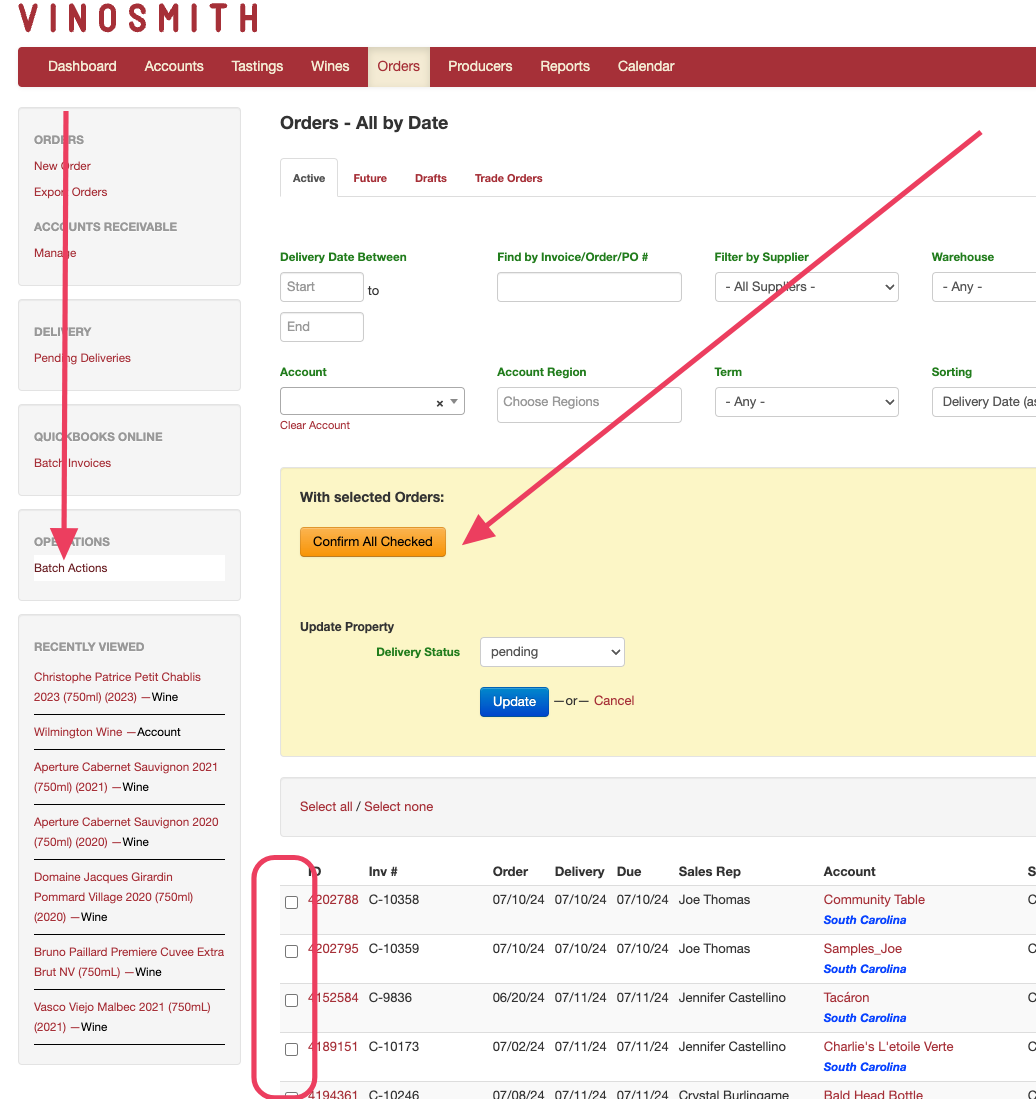
Click on the Orders tab
Scroll down to the Operations section located on the left-hand navigation
Click the blue Batch Edit button
A yellow box will appear, providing an option to "Confirm All Checked" orders.
Select the orders and the Delivery Status to be updated
Pending
Placed
Manual
Sent to Warehouse
Warehouse Bypass
In-Transit
Delivered
Click Update
The actions are processed in the background and may take several seconds. The page will reload immediately; however, those orders waiting in the queue might still be on the reloaded screen.
Depending on your configuration, orders will flow to the Pending Deliveries and Batch Invoices pages, just as you confirm one order at a time.
The default Delivery Method is used.
All Account Contacts that are marked as Invoice Recipient and Always CC are notified
All Supplier Contacts that are marked as Invoice Recipient and Always CC are notified
Please note: If you email your warehouse during order confirmation, it won’t go through. For everything to work smoothly, make sure the warehouse email is a contact at the Supplier level.