

NOTE: If you are currently using the QB export to process Fintech orders, be sure to reach out to your Fintech representative before transitioning to Vinosmith to ensure everything is processed correctly.
Here is how to export your orders:
Go to the Orders screen
Click on Export orders
Select Fintech
Select the supplier from the drop-down menu
Select the appropriate parameters
Optional: Toggle Account Payment Provider to Fintech. (Please only perform this step if you have communicated with Vinosmith and are aware of this setting. Otherwise, just skip this step.
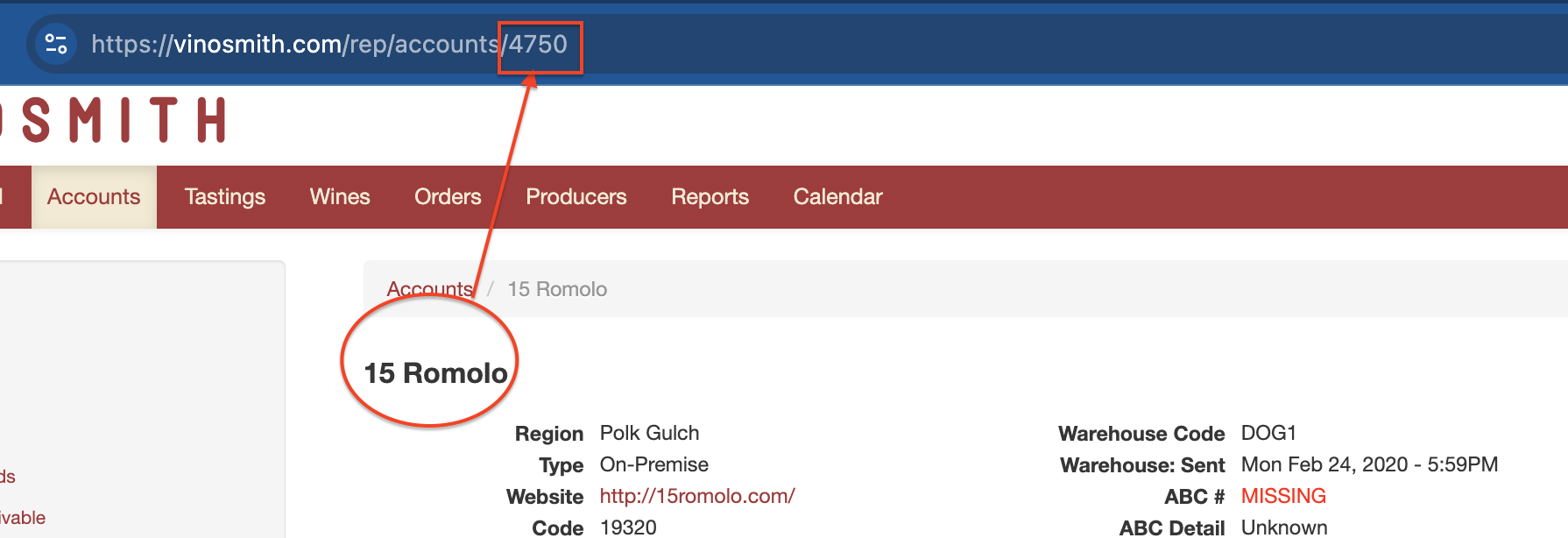
If you only want specific Accounts included in the export, enter the Account IDs in the Account IDs field. The Account ID can be found by going to the account's page and copying the numeric value at the end of the URL
Select a date range
Use Account: External Identifier(1) when populated? -- Please check this box if this applies to you (please see note below for more information)
Click the blue Export button
What does "Use Account: External Identifier(1) when populated?" mean?
Fintech requires the Account Name in Vinosmith to exactly match what is in Fintech.
If it doesn't, then the External Identifier(1) field at the Account level can be used to reflect the "exact match to Fintech name", and that checkbox would reflect those values when running the report
Do you use Taxes in Vinosmith?
If you have tax tables in Vinosmith and those tax tables are applied to Invoices, then Vinosmith can generate a Fintech orders file with tax line item identifications.
This means that a taxed line item will be expanded into 2 rows in the Fintech file: one for the untaxed amount and another for the tax.
Fintech requires these virtual tax rows to have a known Item Number and Product Description. These identifiers can be specified in Vinosmith on the Tax Table.
Here is how to do that:
Navigate to the Tax Table and edit it
Look for the Fintech: Tax Identifiers field and populate it with a value that conforms to this format: comma-delimit the item number and the product description. For example, input a value like
JavaScript1234567, City TaxThen save your changes.
When Vinosmith generates the Fintech orders file and line items are taxed those identifiers will be populated into the file.