If a Product is at multiple Warehouses then during Order placement an Invoice is created for that Product at that Product's default Warehouse (assuming the setting to choose the Warehouse at the time of order entry is not enabled).
If you need to change that Product to be fulfilled from its non-default Warehouse you can click on the "Change Warehouse" link on the right side of the line-item when you are viewing the Invoice details.
The action of clicking on this link (and choosing a new Warehouse) requires Vinosmith to pull that line-item out of the current Invoice it is on, create a new Invoice (and thus a new Invoice Number) and attach it to that new Invoice.
If that Product was the only product on that invoice (so it was invoice with a single product/line-item) this will cause the Invoice Number to change and the first Invoice number is now abandoned.
If you want the Invoice Number to not change and remain a constant Vinosmith allows you to migrate all line-items (one or more) on that Invoice to a new Warehouse and honor the same Invoice Number.
To migrate all Invoice Line Items to a new Warehouse and keep the same Invoice Number:
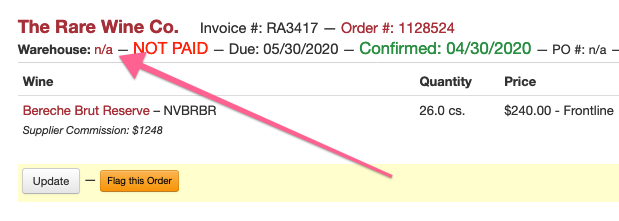
Go to the Order details screen; at the top-right of the Invoice the Warehouse attached to the Invoice is displayed with its Name (or "n/a" if there is no warehouse attached)
Click on the Warehouse Name and a pop-up will appear. You can then choose a new alternate Warehouse that is common to all line-items.
Choosing a new Warehouse will then hold the Invoice Number constant and migrate all Line Items to that new warehouse.
Please see this screenshot for the link location: