

How to Get There
Click on Orders
From the left navigation, click on Explore: Interactive Sales
Customizing Grid State and Columns
You can customize your "Grid State", which means you can customize the columns and/or filters you prefer when opening the Interactive Sales.
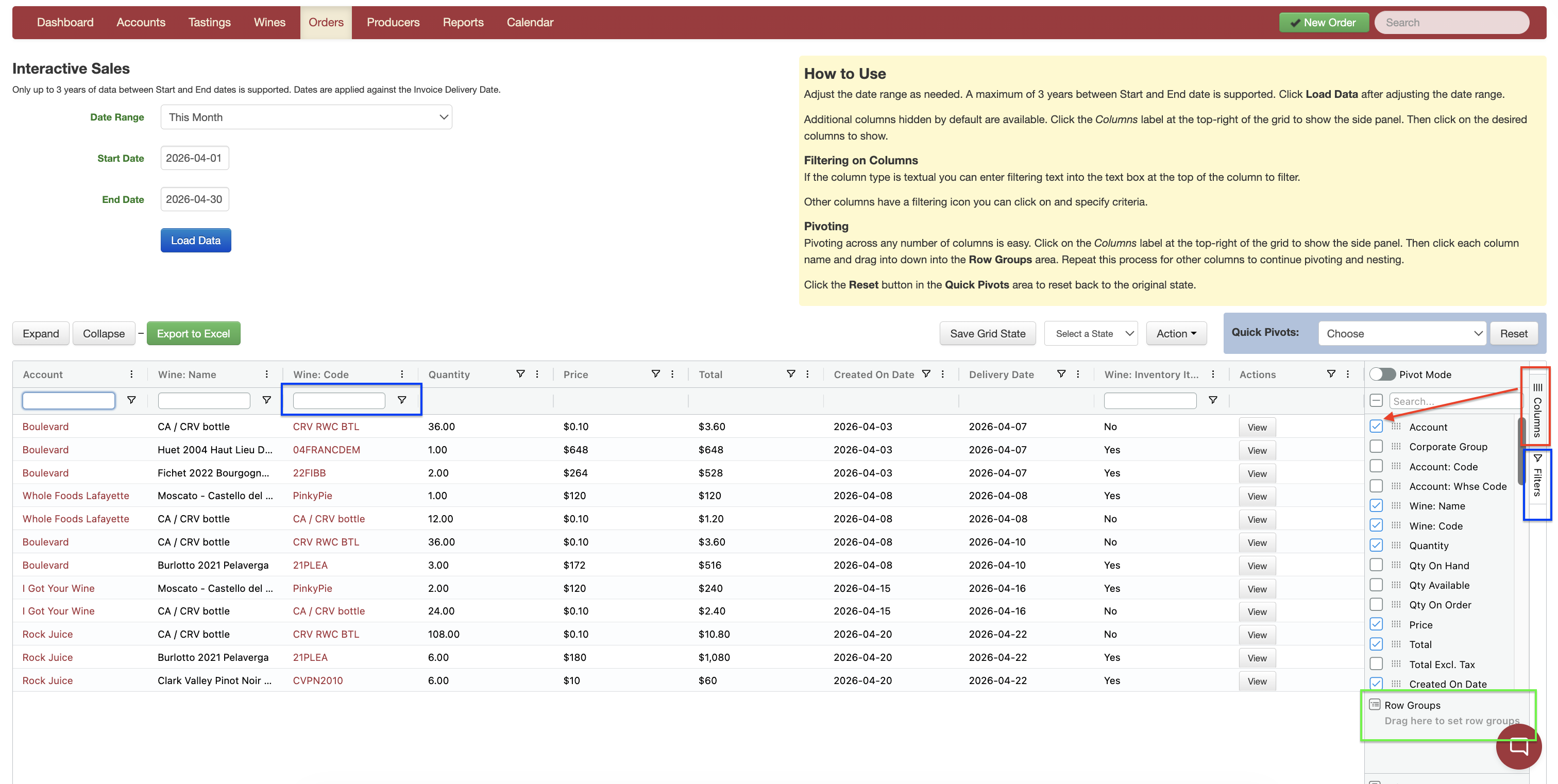
Customizing the Columns
On the far right of the screen, click on Columns
A dialogue box will slide out, and you can choose your preferred options
As you select your options, you'll see the columns change
You can also change the order of the columns by dragging each line item to any position within the list
Grouping Data
Any column name can be used to group your data. You can do this by dragging the column name into the Row Groups box.
Filtering Data
Filtering data can also be done by clicking the Filter Icon in the column header or by clicking Filters.
Click on the drop-down arrow for any of the parameters you'd like to use and enter the data needed
For example, in the Sales Rep field, type in the sales rep's name. This will filter any items containing that sales rep.
Saving Grid State
To open the Interactive Sales with these parameters you've just chosen:
Click on Save Grid State
Key in the name you'd like to use for this state
Click on OK
Exporting Data
The Interactive Sales will export the data currently displayed on the screen.
To export this data, click on the green Export to Excel button at the top left, and the file will auto-download.