

The steps below assume Sidekick integration has been activated on the admin panel. Please reach out to help@vinosmith.com for more information.
Sidekick Item Configuration
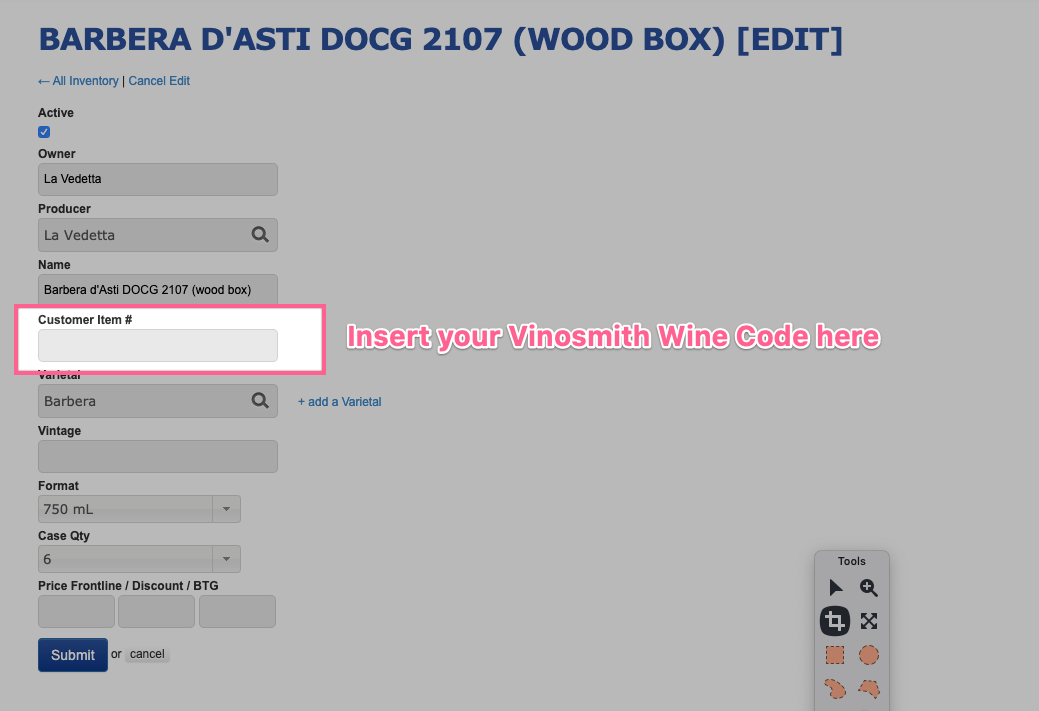
In Sidekick, when managing an Inventory Item, there is a field titled Customer Item #.
Your Vinosmith Product Code needs to be present in this field. Please see this Sidekick Item configuration screenshot for reference:
Once your items have been configured in the Sidekick portal, please contact help@vinosmith to enable Sidekick in Vinosmith.
Workflow in Vinosmith
During Order confirmation, choose Deliver Via: Sidekick in the confirmation pop-up
Under the Orders tab, click on Pending Deliveries on the left.
The Pending Deliveries page lists all Orders that have been recently confirmed and are ready to be submitted to Sidekick.
Check the box next to each Order that you would like to be in the batch you are about to generate.
At the bottom of the page is a menu With selected export to: and choose Sidekick: Download Orders Export.
Vinosmith will generate the Order file and download it to your computer.
Login to Sidekick and upload the generated file.
If the Sidekick import process is successful, then go back to Vinosmith (tip: keep Vinosmith open in another tab/window), and from the same Pending Deliveries screen, click on the checkbox for the same orders you had selected previously and this time choose With Selected: Mark as Processed to mark them as fully processed and remove them from the delivery queue.