

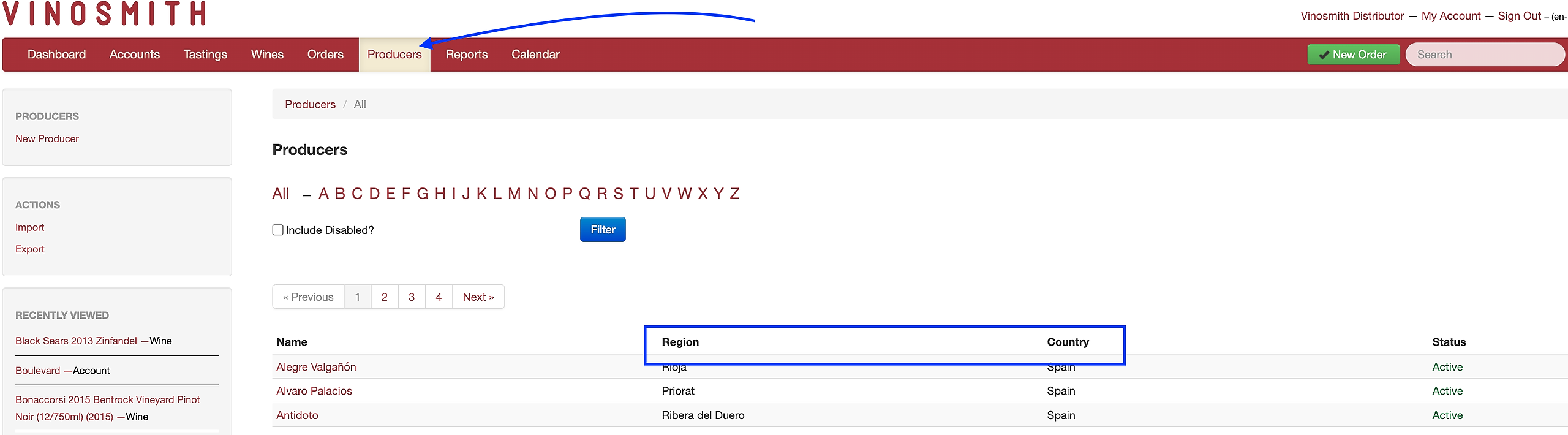
Please note that two fields at the Producer level organize the price book: Country and Region. These two fields must be populated for your Price Book to be generated.
Users can see if the Country and Region have been entered by going to the Producers tab.
If a Producer needs a Country and/or Region added, that must be done at the admin level.
To Create A New Price Book
Navigate to the Products tab
On the left-hand navigation, click on Price Books
Select the New Price Book link
On the subsequent screen, choose the criteria for which products (active product) will appear in the output.
Click Generate Price Book
To Save the price book, click the down arrow.
Provide a title and notes, and optionally share this price book with other users in your organization.
A Few Notes About The Price Book Functionality
Inventory
To include inventory in the Price Book, check the Calculate Inventory? box.
When Calculate Inventory? is checked, the following logic is applied:
Product / Quantity Control = Exclude Products with no inventory
If a Product has 0's in all inventory boxes, the product is not displayed
Product / Quantity Control = Show All Products
If a Product has a value in the Available bucket, it displays the Available number
If a Product has 0 in Available but does have inventory On Order, "Inquire" will be displayed
Warehouse - If no warehouse is selected, the total Available inventory across all warehouses will be displayed
If the Calculate Inventory? box is NOT checked, but the dropdown Exclude Products With No Inventory is selected; the Price Book only shows products with a value in the Available inventory bucket and does not show any column for inventory
Summary of Inventory Value Displayed
If you choose to display Inventory the following values can be displayed:
Numeric value: if Available inventory is greater than zero
Coming Soon: if Available inventory is less than or equal to zero and either: (1) On Order is greater than zero -or- (2) Sum of Pre-Arrival entries with an expected date greater than "now" is greater than zero
Inquire: If Available is less than or equal to zero and On Hold (e.g. Allocation) quantity is greater than zero
Pricing
*At least one price label needs to be selected.
Please note that if you choose to show more than four prices, the Price Book page/column real estate/spacing can get a little tight based on your price names.
To select which prices to add to your price book, select Price Label or Price Group.
Next, select the Price Layout. Options are columns or comma-delimited.
If using comma-delimited, the Price Book Label Abbreviation will be appended to the price. For example, if you have a Frontline price, if you used an abbreviation of "FL," the price would look like this $110/FL
To add a Price Book Label Abbreviation, edit the product's price and populate the Price Book Label Abbreviation.
When including pricing, the following logic is applied:
Admins can add both public and private prices. Sales Rep users can add only public prices.
Users can choose how the prices are shown (bottles, cases, or both) on the Price version field.
If a product is marked "Price/Tasting Sheets?"= No, we do not allow that product to be shown on the price book or the tasting sheet.
When using Price Labels, there is an option at the bottom of the screen called Product Price Label Exclusion Treatment. In this field, please select which option best applies - Every Product must have ANY of the selected Prices OR Every Product must have ALL the selected Prices
Please note: Any items with a private price label will not be reflected on the price book for rep users. Only admin users will see private prices show up on their price books.
Prevent Text Breaking
When the Prevent Text Breaking? feature is selected, it will try to prevent page breaks between text blocks when possible. This could result in the document having extra blank spaces and being longer.
Page breaks will typically happen around the region and/or producer, whenever works best.
Grouping options are set in the Price Book template.
Country + Region
Wine & Spirits
Wine & Spirits Type
Importer
Please note: When selecting this option, this will group Importers that were set at the Producer level. The Producer will have the option to populate the Importer for all products.