First, you need to get your Vinosmith Calendar Feed URL
Click on the Calendar tab
Scroll down to the bottom of the page and beneath the Month calendar is a link Get Calendar feed. Click on this link and copy the link to your Clipboard.
Apple iCal
Open your Apple iCal.
Click on the File Menu.
Select New Calendar Subscription.
Click Calendar URL feed.
Paste the link of your Vinosmith calendar.
Hit Subscribe.
Note: If you want the calendar to be shown on your iPhone then you will need to choose iCloud in the Location dropdown in the previous step.
Microsoft Outlook
Please note: these instructions were written using Outlook 2010. While prior versions support the same ability, the menu items/names might be labeled differently.
Please note: Outlook 2016 for Mac does not have the ability to subscribe to calendars. So it is effectively a non-starter. If you are on a Mac, you must use Apple iCal.
Open Outlook and click on your Calendar section to view your calendars.
In the Ribbon toolbar at the top, find the dropdown for Open Calendar, click this and in the menu, select From Internet ...
Paste the URL into the box and follow the prompts to save it.
Google Calendar (on the web)
NOTE: Google Calendar does not fetch in real-time. There is a delay in events being imported by Google Calendar from a Calendar Feed URL - which is what Vinosmith is providing. The delay can be as long as 12-24 hours.
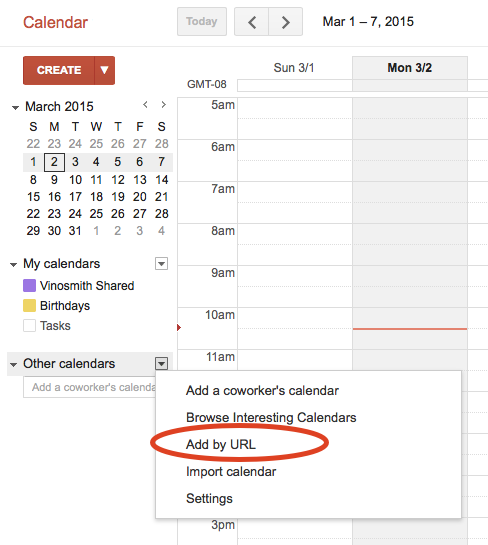
Navigate to your Google Calendar on the web. In the left column is a section for Other Calendars with a small drop-down. From this drop-down is an Add by URL option, which you can these paste into your Vinosmith Calendar Feed URL.
See this screenshot for details: