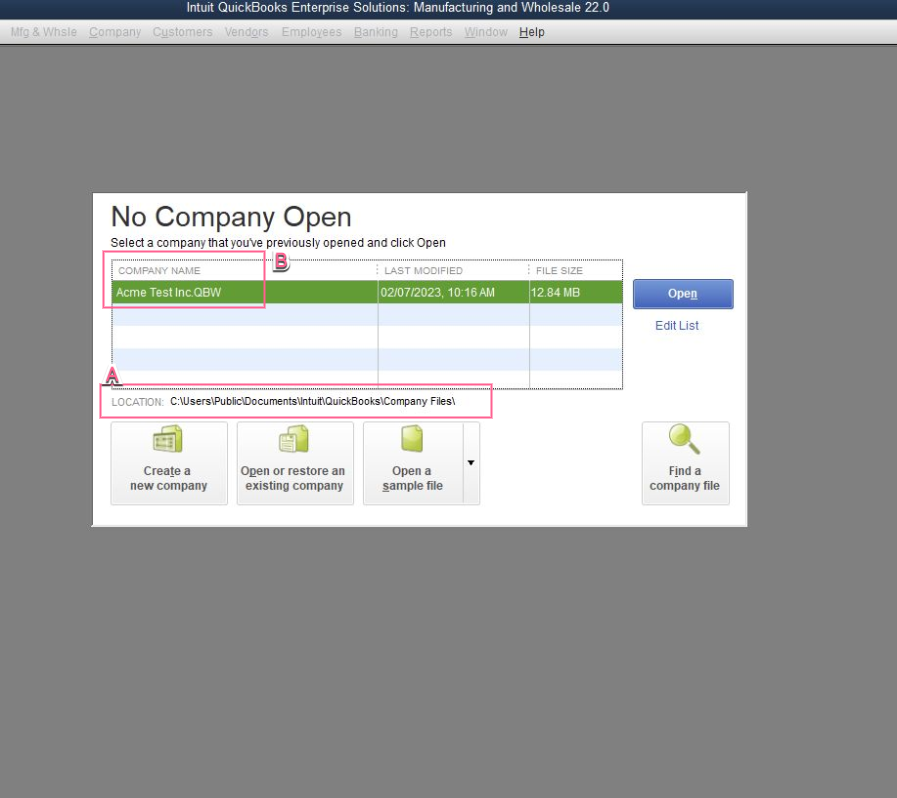
In some Quickbooks Desktop integrations Vinosmith will need to know the path to your Quickbooks Company File.
Here is how you can determine that information.
Open QB but do not open the actual company file. If you open QB and your company file automatically opens, close it by going to File menu and choosing Close Company
When the company file is closed QB will prompt you to open a file by displaying the prompt similar to above.
SINGLE-click on the company file to select it (do not open it)
You can now see the "A" and "B" components to send back to Vinosmith. Alternatively you can take a screenshot of this exact window with your company file selected like above.
Please see this screenshot for reference. In this example the full path to the company file is "A" and "B" combined; so it would be
C:\Users\Public\Documents\Intuit\QuickBooks\Company Files\Acme Test Inc.QBW