

You can edit the status of multiple wines or inventory using this feature within the Interactive Inventory tool.
Before using this feature, first filter for a wine (or warehouse).
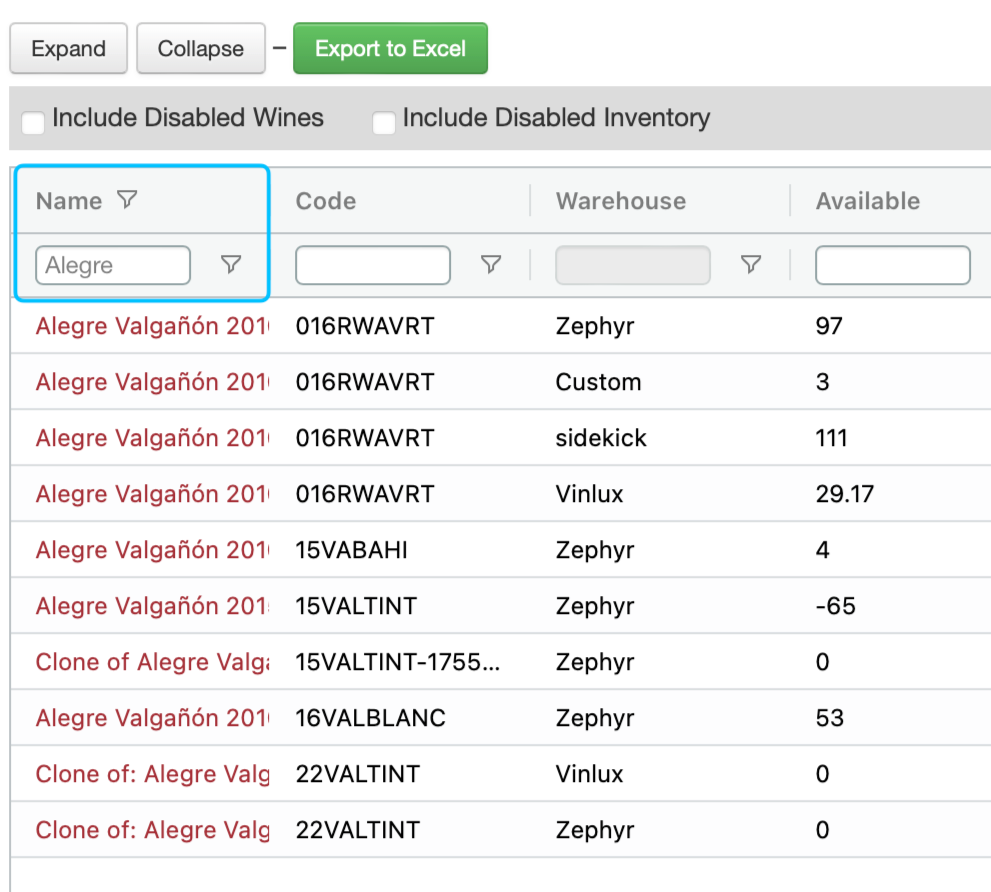
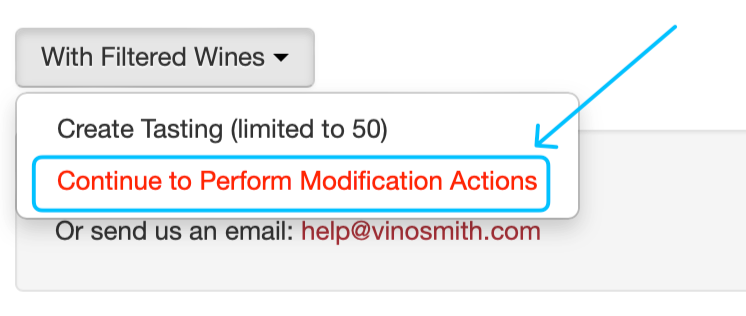
Once filtered, scroll to the bottom of the screen, and click on the dropdown labeled "With Filtered Wines".
Two options will be displayed here
Click the second "Continue to Perform Modification Actions"
On the next screen, the filtered wines will be displayed. Select the wines you want to modify by checking the box next to each wine name. After selecting a wine, a dropdown labeled 'With Selected Wines' will appear with four options:
Disable Wines (disable the whole wine)
Disable Inventory (disable just the inventory/warehouse record)
Enable Wines (make Active)
Enable Inventory (make Active)
Once you select a choice, you'll see an orange button that says "Perform Action":
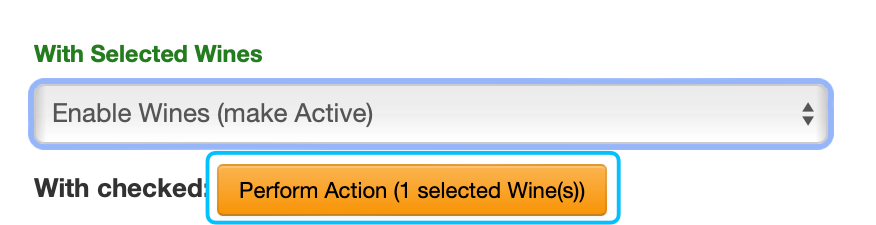
Click this button to complete the step.
Please note: Disabling a wine's primary inventory record but keeping the wine active might lead to confusion. Please consider disabling the whole wine.