

Please get in touch with help@vinosmith.com to enable this feature
How It Works
When you create a new price, you can set start and end dates for it. The system will sweep daily at 1 am PST to enable or disable prices as needed.
How to Use This Feature
Go to the item you would like to update
In the Prices section, click on Manage (in the right corner of the box)
Click on Add Price
Fill out the information as needed
Click on Save
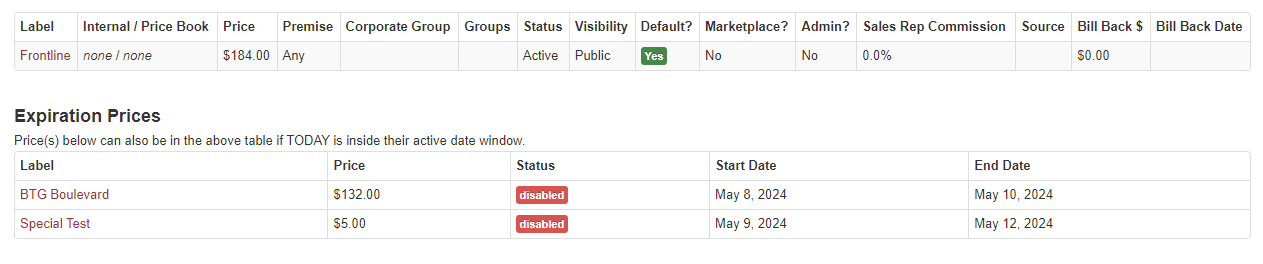
After clicking on the Manage link below the main Prices box, a box within the Prices section will display a record of where each item's expiration prices are stored.
This box identifies which prices are currently enabled and which have been disabled and when.
Batch Update Multiple Products and/or Prices
If you'd like to add this feature to multiple products, you can use the import/export flow to batch update your products.
Please take a moment to review the Import Instructions to ensure that your update will be successful. Both the Detailed and Basic exports support the Expiration Price feature.
1. Export Your Data
Click on Products
From the left-side menu, click on Export Prices
Select either the Detailed or Basic export
Click on Export
tip: save a copy of your original export just in case
2. Update Your Data
tip: before updating your data, we recommend deleting any unnecessary line items that do not need changes
Update your data as needed
In the Detailed export:
Start Date = column L
End Date = column M
In the Basic report:
Start Date = column M
End Date = column N
Save your file
Please note: Both start and end dates need to be present on the spreadsheet in order for the feature to execute correctly
3. Import File
Click on Products
From the left-side menu, click on Import Prices
Select either the Detailed or Basic tab
Upload your file
Click on Import
Enable a Notification for Expired Prices
Enabling this notification allows you (and/or the email recipient(s) you include) to receive email notifications
Go to My Account
Click on Manage
Scroll down to Outbound Emails
On the right, click on Add
Select the Key prices-scheduled-action from the drop-down menu
In the Recipient(s) box, enter the email address(es) for those who should be receiving this email notification
Click Save