

How to Set Up Your Postal Codes:
Click on My Account
Click on Manage
Click on Marketplace Settings
From the left-side menu, click on Manage Postal Codes
If this is your first time, click on the Auto-Populate My Sellable Postal Codes
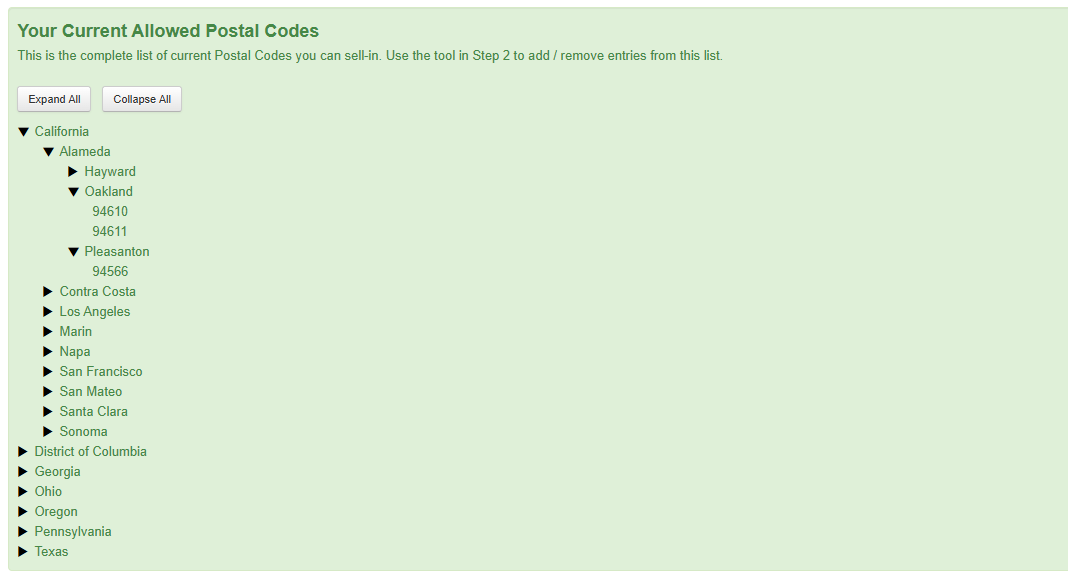
In the Green Box, you will see your current zip codes that are set up for you to sell in. It's broken down by State, County, City, then Zip Code (as shown below).
Add Postal Codes to Your Marketplace
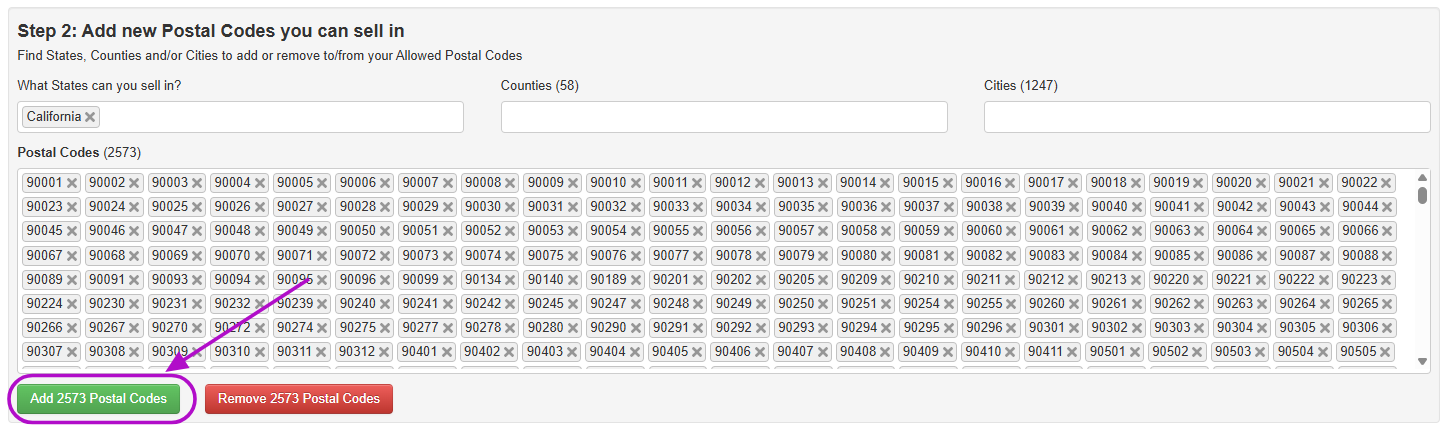
On this same page, in the light gray box called Step 2: Add new Postal Codes you can sell in, select the state(s) you would like to start with.
Any zip code can be removed from the list by clicking on the small x next to the zip code.
State(s) - Adding all Zip Codes
If you would like to add all zip codes within the state(s), click on the Add ### Postal Codes button
Add Specific Zip Codes
To add more specific zip codes, key in the counties and/or cities to drill down to the specific zip codes that you need added

Remove Zip Codes from Your Marketplace
Remove (Reset) ALL Listed Zip Codes
Scroll down to the bottom of the page and click on Clear My Current List of Postal Codes
Remove a Specific Subset of Postal Codes
Follow the same steps as above to create your list of postal codes (by state or more specific)
When you have your list, click on Remove ### Postal Codes