

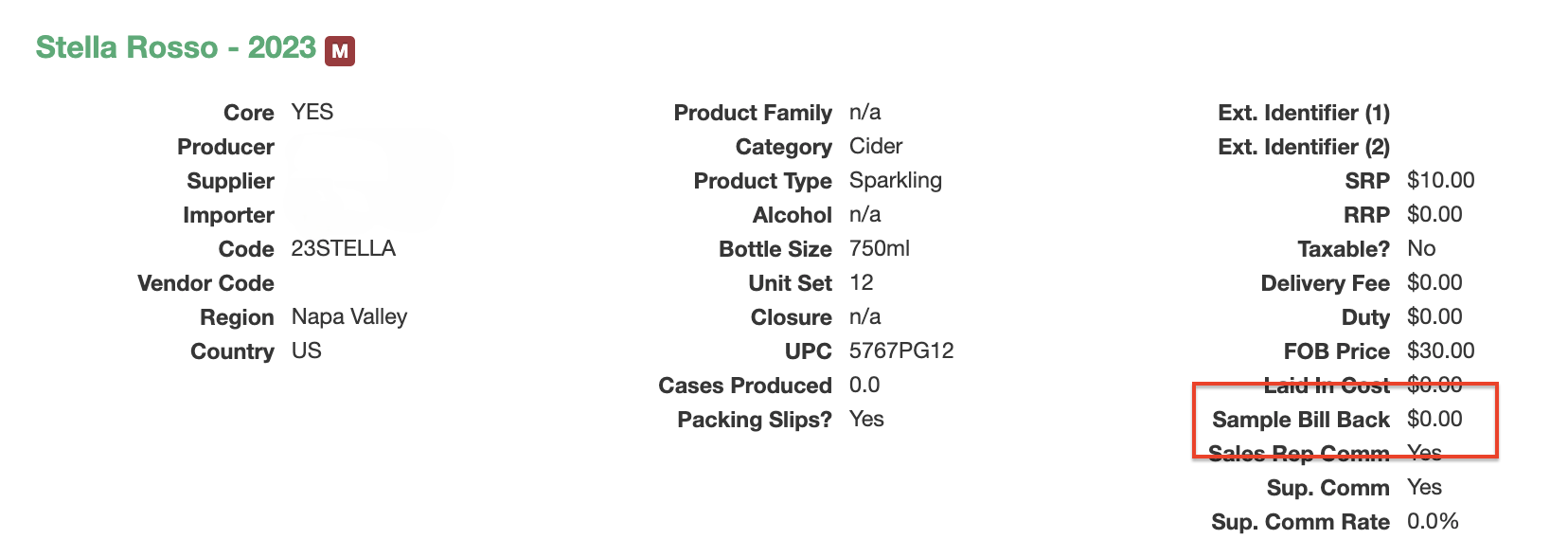
The Sample Bill Back field is located in an individual product's properties section, right below the Laid In Cost value.
The Sample Bill Back value will not be affected when line items are zeroed out using the Zero-Out Line Items option on a sample order.
Please note: At this time, there is no way to surface bill backs or credit memos on the invoice or transmit this information to QuickBooks.
Reports that include Sample Bill Back values
Please check the box labeled "Include Samples?" option in each report.
To update the Sample Bill Back field on an individual item:
Click on the Products tab
Click on the product
From the left menu, click on Edit Product
Scroll down to the Financial section, key in the ($) amount in the Sample Bill Back field
Click on Save Changes
To update the Sample Bill Back field using the Product Properties import/export flow:
Export your data
Click on Products
From the left-side menu, click on Export Properties
Check the box labeled "Active Only?"
Click on Export
Tip #1 - Please save a copy of the original file before making any changes
Tip #2 - Please review the Import Instructions so that you know which columns are required -- https://vinosmith.com/rep/wines/properties/import_intro
Tip #3 - We recommend doing a test import of about a handful of products to ensure the update is working as anticipated
Update your data
Make your changes as needed
Save your file
Import your data
Click on Products
From the left-side menu, click on Import Properties
Upload your file
Click on Import