How to Batch Upload Your Account Communications
Step 1 - Download the Account Communications Import Template
Click on Accounts
From the left-side menu, scroll down to the Import/Export section and click on Import Communications
Click on Download an Excel template
On the Import screen are the import instructions. The chart identifies which columns are Required and Conditional
Step 2 - Enter Your Data
Save a copy of the file (so that you have the untouched template for your records)
Completing the spreadsheet:
Upload - should always have the word "communications" populated for each line item
Date of Communication - MM/DD/YYYY
Account Name - need to match the account in your instance exactly
Account Code - this may or may not apply to your organization, depending if Account Codes were assigned to your accounts
Type - these need to be spelled exactly as they are reflected on the Import Instructions chart
Phone call
Email
In Person Visit
SMS
Social Media
Postal Mail
Video Call
A/R Past Due Notification
Save your completed spreadsheet

Step 3 - Import Your File
Click on Accounts
From the left-side menu, scroll down to the Import/Export section and click on Import Communications
Upload your file
Click on Import
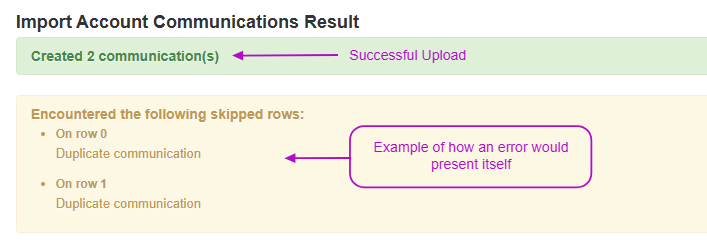
After the Import - Final Results
After you've uploaded your file, you should see a screen similar to the screenshot below come up. :)