Please contact help@vinosmith.com to enable this feature.
Getting Started
The Import Products From File feature allows you to import multiple products at once using the import flow.
Please review the import instructions and download a copy of the template from the Import screen here.
Completing the Spreadsheet
Click on My Account
Click on Manage
From the left-side navigation, click on Import Products From File
Download the template from the blue box at the top of the screen
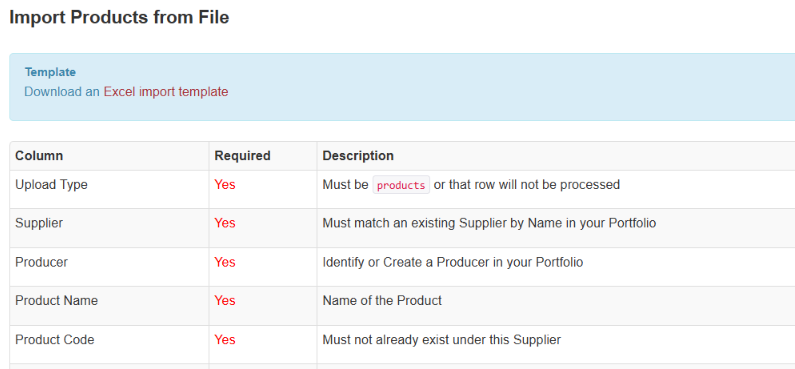
The grid specifies which columns are required (as shown in the screenshot below) and which are optional
Warehouse - will a warehouse be added? If so, in the Quantity column, key in the inventory quantity
Prices - will a price be added? If so, a column can be added with the Price Label name (example: Frontline) and in the fields below, include the price for each individual line item
Save your file
Note: When completing the spreadsheet, there are tabs along the bottom to provide the values accepted the system for a successful import.
Importing Your Data
Click on My Account
Click on Manage
From the left-side navigation, click on Import Products From File
Attach your file
Select additional importing parameters
Dry Run Option: A Dry Run will not import any products; it will analyze the file and notify you of any data issues. To actually create Products, uncheck this option.
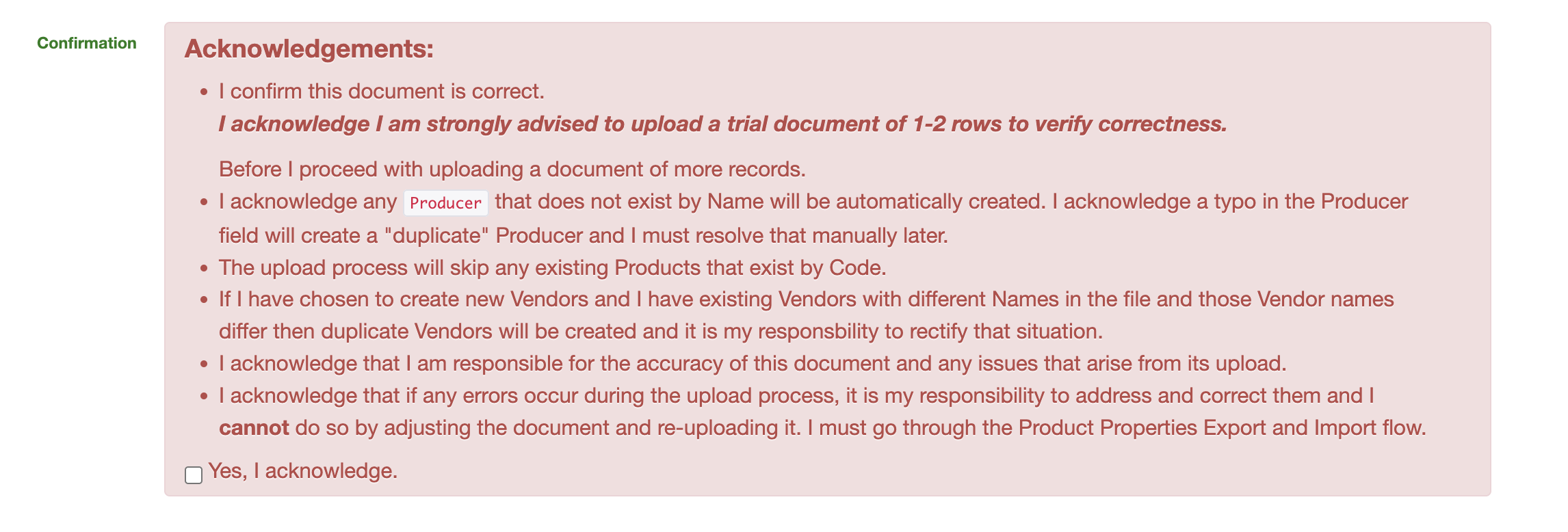
Review and confirm Acknowledgements
Click on Import