How to Save and Share a New Price Book
Click on the Products tab
Click on Price Books (left navigation menu)
Click on Create Price Book
Key in your product information
Click on the drop-down arrow next to Generate PDF
Click on Save This Price Book
A pop up window will appear, enter the Title name of the book
Key in Notes (if applicable)
Share this price book with all team members? -- click on the check box
Click on Save
How to Share an Already Saved Price Book
Click on the Products tab
Click on Price Books (left navigation menu)
Select the Price Book you would like to share
Click on the drop-down arrow next to Generate PDF
Click on Update This Price Book
A pop up window will appear
Share this price book with all team members? -- click on the check box
Click on Update
Shared Price Books
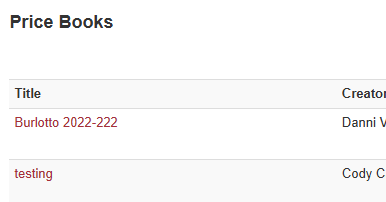
After the Price Book has been shared, all team members should see the shared Price Books similar to how it is shown in the screenshot below.