If your organization has Draft Orders enabled, Sales Reps may create draft orders and forget about them.
An additional setting, Draft Orders - Expiration and Notification, can be enabled. To enable this setting, navigate to your Admin panel and check the box for Draft Orders - Expiration and Notification.
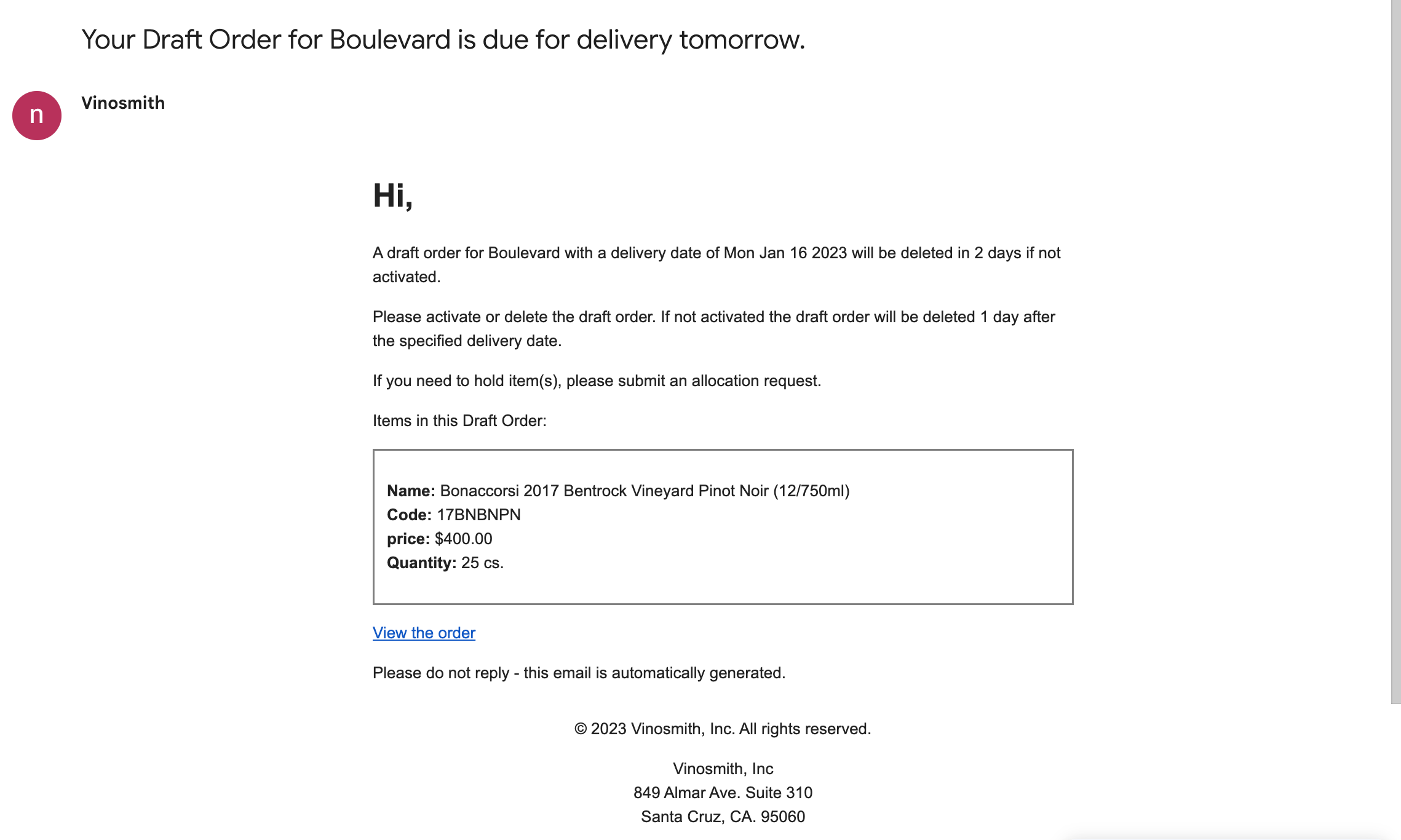
When this setting is enabled 1 day before the order's delivery date, the sales rep will be notified of the pending draft order.
If the draft order is not deleted or activated, then 1 day after the delivery date, the order will be automatically deleted.
Additional Notifications
You can enter additional email recipients to be notified when Vinosmith generates the notification for the sales rep when the order has reached one day before delivery.
Navigate to your Admin panel and locate the Outbound Emails section, click on Add and enter/update an entry for the key expire.draft.orders.notification.
Enter as many emails (comma-delimited) as desired and save your changes. No content for Subject / Body is needed.
Please note that if you enable draft expiration, it will only apply to new draft orders created going forward. Any existing expired draft orders will need to be manually pruned.
Example of Expiration Notification