

Email notifications are sent once a day in the morning.
Enable Alert for a Single Product / Inventory Combination
Navigate to the Product; click Manage in the Inventory display
Click Adjust on the specific inventory location you want to be notified
Proceed to complete the Email Alerts section
Check the box to enable alerts.
Enter the Quantity that should trigger the alert.
Choose the inventory field to examine based on the alert quantity (on-hand or available)
Click Update to save your alert settings.
Email Notifications are delivered once a day in the morning.
Until alerts have been disabled for that Product or the inventory quantity has been replenished above the alert threshold Vinosmith will continue to send the email.
Once you have configured the what of your notification now you need to set the who.
Configure Outbound Email
The first step is to configure the Outbound Email, which contains the set of recipients to notify.
Click on My Account in the top-right; followed by Manage in the left.
Locate the Outbound Emails section and click Add.
For the Key parameter choose inventory.notifications
Enter desired recipient email addresses, comma-delimited.
Enter desired Reply-To.
Save your settings.
Any content in the Subject and Body fields will be included in the email.
Single versus Digest
You have a choice of receiving one email per inventory record, or a digest of all inventory alerts.
One email per inventory: means that for each inventory alert you will receive 1 email. If you have enabled 27 products with an inventory alert and they all reach their threshold, you will receive 27 emails.
Digest: one email per alert can result in a noisy inbox. Vinosmith has a digest mode where you will receive only 1 email with a list of all alerts.
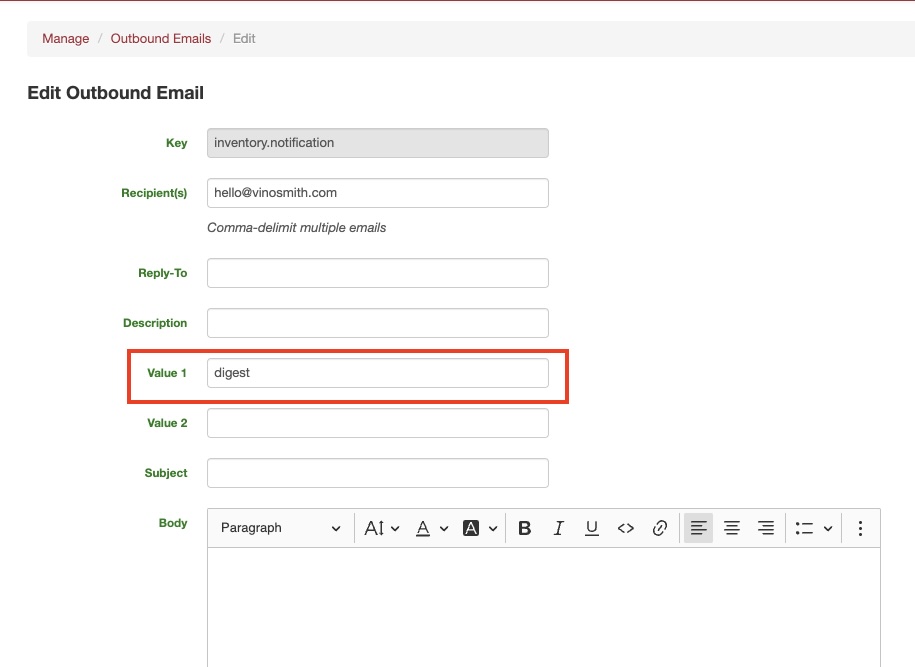
To use digest mode is simple: edit your Outbound Email and in the Value 1 field put the text "digest" (no quotes).
Refer to this example:
Create and Update Alerts via Batch
The detailed inventory export has three (3) alert-related fields which can be batch updated. During the import/update process, only if the Alerts Enabled? cell equals yes (case-insensitive) will the updating take place.
Reporting
The Export Inventory (detailed) also has the option to run the export to Limit to Records Under Alert Threshold?. Exporting inventory with this option checked will show you only products with threshold enabled.