To configure the Shelf Talker (Admin Only)
Note: The Shelf Talker Notes are included by default
To select the options to include on the shelf talker:
Navigate to My Account
Click the Manage link in the left-hand navigation
Next, click Shelf Talker Settings in the left-hand navigation
Click Edit
Shelf Talker Settings Management
Producer Name
Awards
Varietals
Tasting Notes
Image
Vintage
Then Save
Images on Shelf Talker
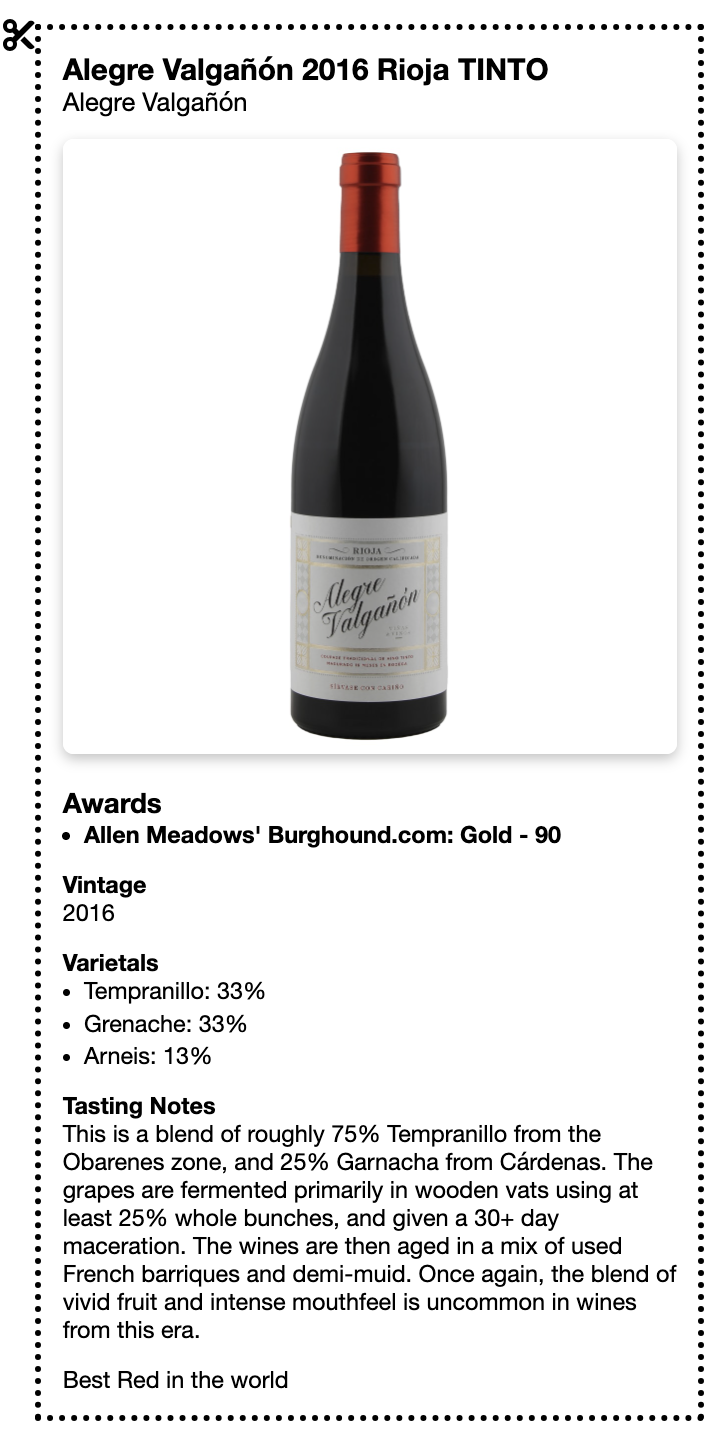
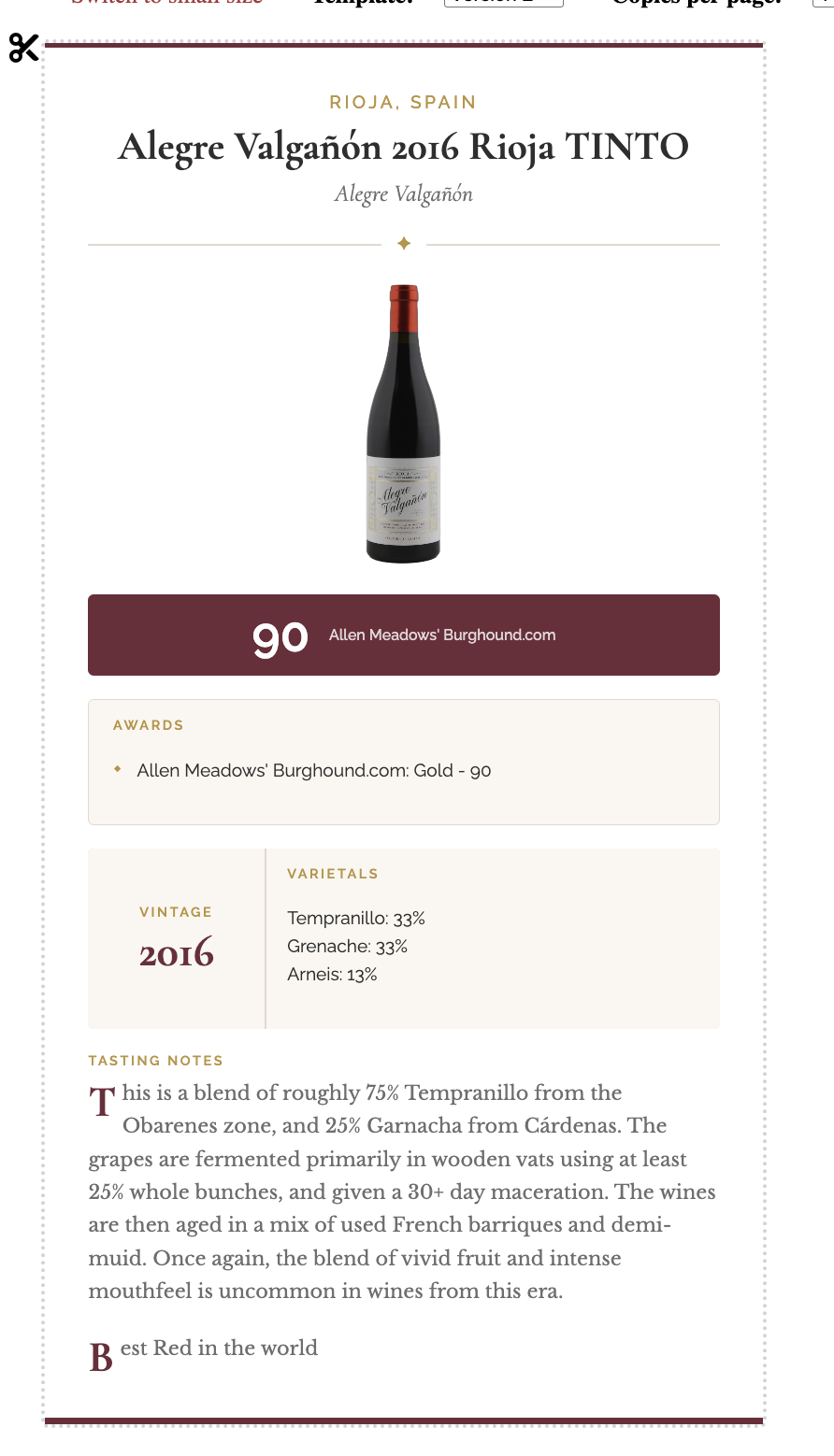
If an image is associated with the item and flagged for tasting sheets, that image will be included on the shelf talker in your Vinosmith instance.
If no image is flagged for tasting sheets, the producer logo will be displayed on the shelf talker.
To include an image on the shelf talker in Marketplace, the image needs to be flagged for Marketplace. If the image is not flagged for Marketplace, it will not be included on the shelf-talker.
Awards on Shelf Talker
If Awards are associated with the item, they will be displayed in bold on the shelf talker.
Shelf Talker Notes
There is a section at the item level called Shelf Talker Notes. This section can include your impressions or other information about the item. When filled out, it will appear on the shelf talker by default.
Shelf Talkers in the Marketplace
Shelf talkers are available in the Marketplace. You can update your Marketplace Settings to prevent shelf talkers from being displayed in Marketplace.
Click on My Account >> Manage
Click on Marketplace Settings
Uncheck the box next to Display Shelf Talker
Print Shelf Talkers
Shelf Talkers are available on each product. To view the shelf talker, click on an item and click on the link Print Shelf Talker on the left-hand navigation.
The shelf talker comes in two sizes, small and large, and there are two versions to select from. There is an option to print up to 6 on a page.
Version 2 Example
Version 1 Example