

Getting Started
Go to the Products tab
On the left-hand side under Suppliers, click the red Manage Suppliers link
Click the red link for the supplier you want to generate BOL/Packing slips
On the left-hand side under Suppliers, click the red *Edit link
Scroll down to the bottom to the section titled Packing Slips/Bill of Lading
Select the checkbox next to Generate?
Save
Learn How to Customize BOL Template:
How to generate a single BOL/Pack Slip
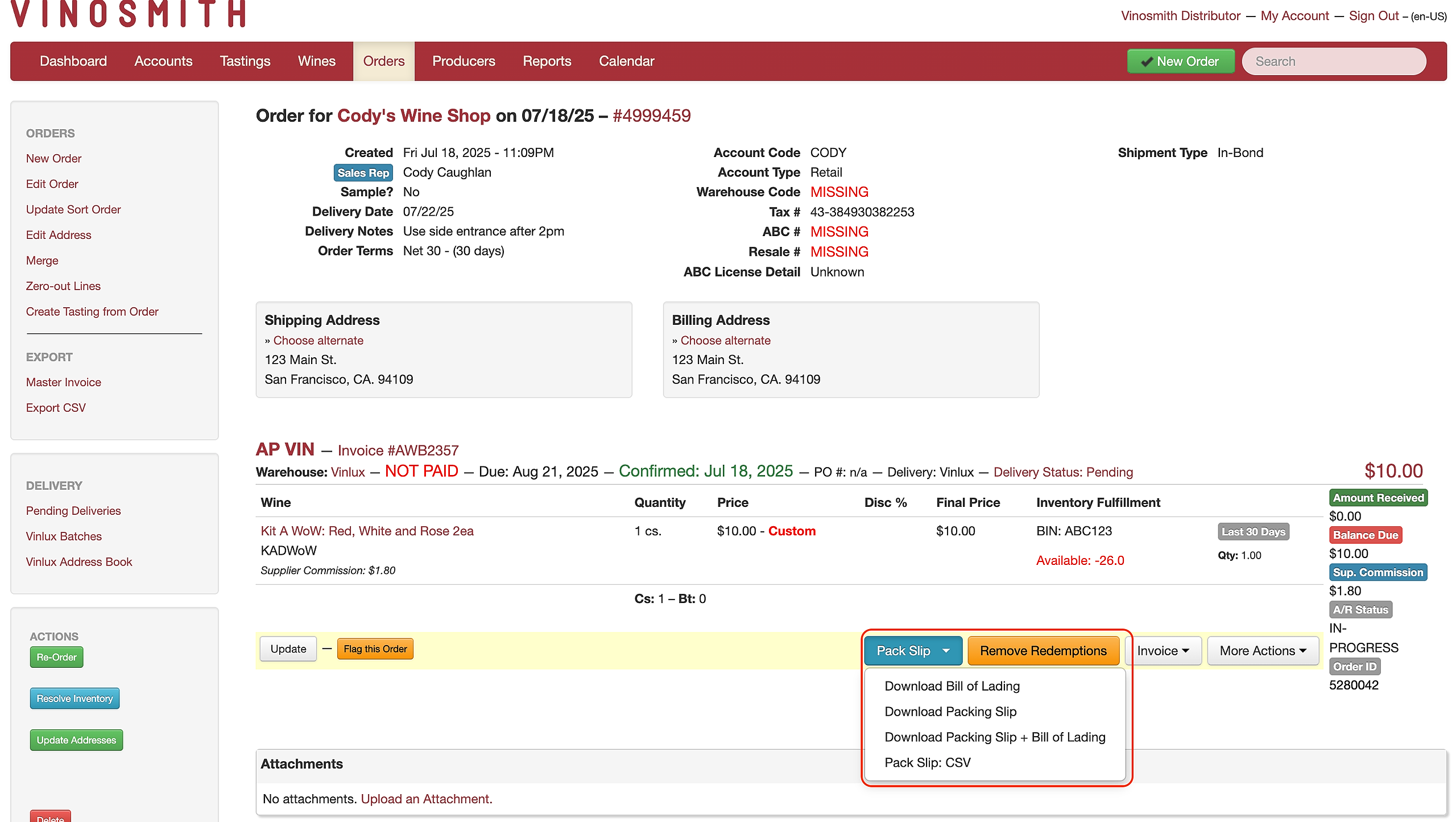
From an individual order, click the Pack Slip/BOL button and select the documents to download to your computer.
Select the Template and Export type
Download Bill of Lading (Bill/Ship to)
Download Bill of Lading (Warehouse Pickup)
Download Packing Slip
Download Packing Slip and Bill of Lading
The first pages are one page for each case; the last pages are a BOL for the entire order.
Pack Slip: CSV
To generate a Pick List from an individual order
From an individual order, click the More Actions button and select the documents to download to your computer.
To generate BOL, Pick Lists, and Driver Manifests in a single file for multiple orders
From the Orders page, click on Pending Deliveries
Select the orders that you'd like to generate documents for
Click on the "With Selected..." button to select the documents to download to your computer.
Please contact help@vinosmith.com if your organization is not currently using the Pending Deliveries screen
Other ways to Generate a Pick List and Driver Manifest
From the Reports page under Extras, you can also generate a pick list and driver manifest if you are not using the Pending Deliveries option or have already cleared the orders from that page: