

How to Get There
Click on the Tastings Tab
Choose the "Interactive" sub-tab
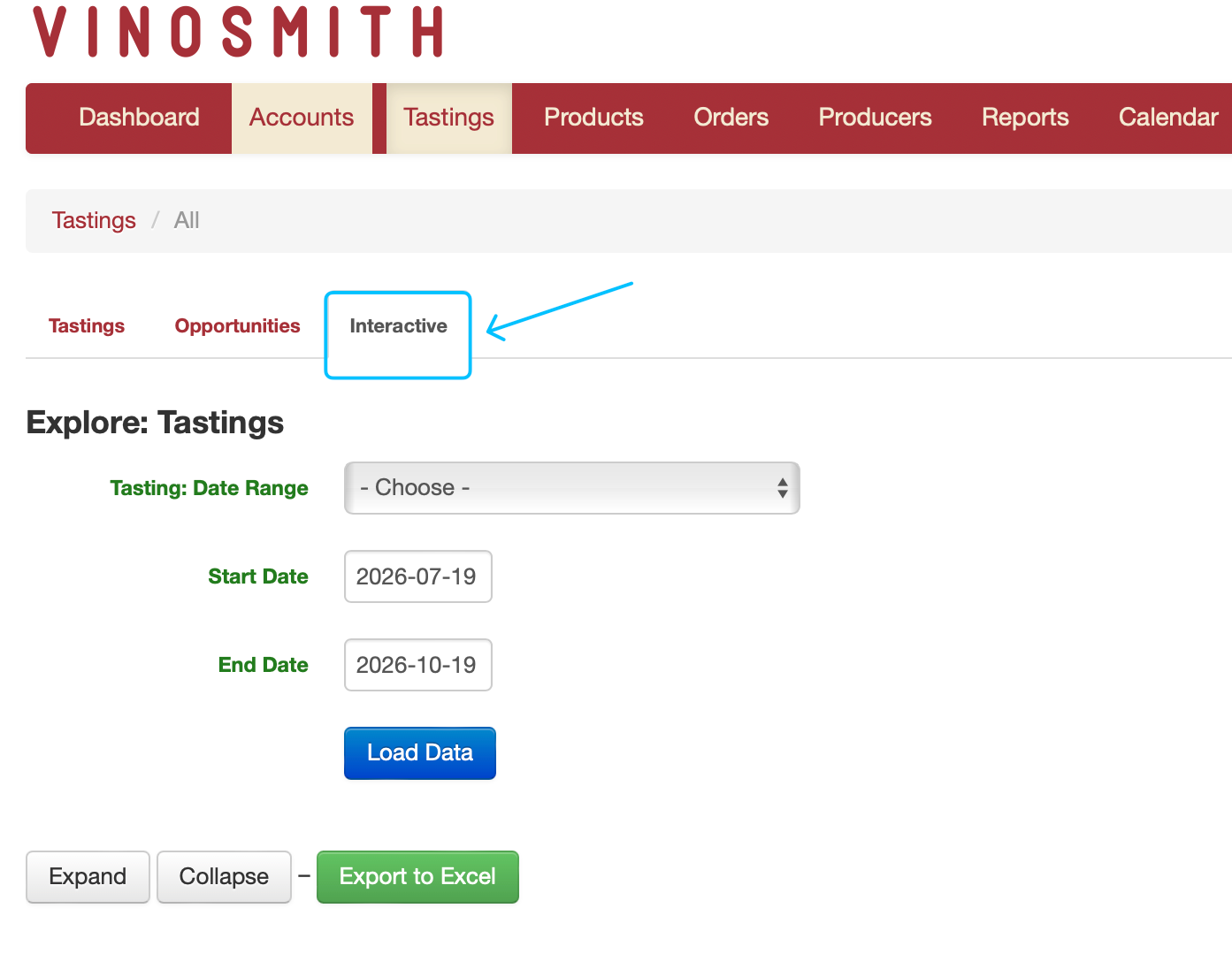
From here, you can filter the items from your existing tasting sheets by date range.
Customizing Grid States and Columns
You can customize the "Grid State" by selecting the columns and filters you prefer when using this tool. Think of the Grid State as a template that allows you to access your data faster.
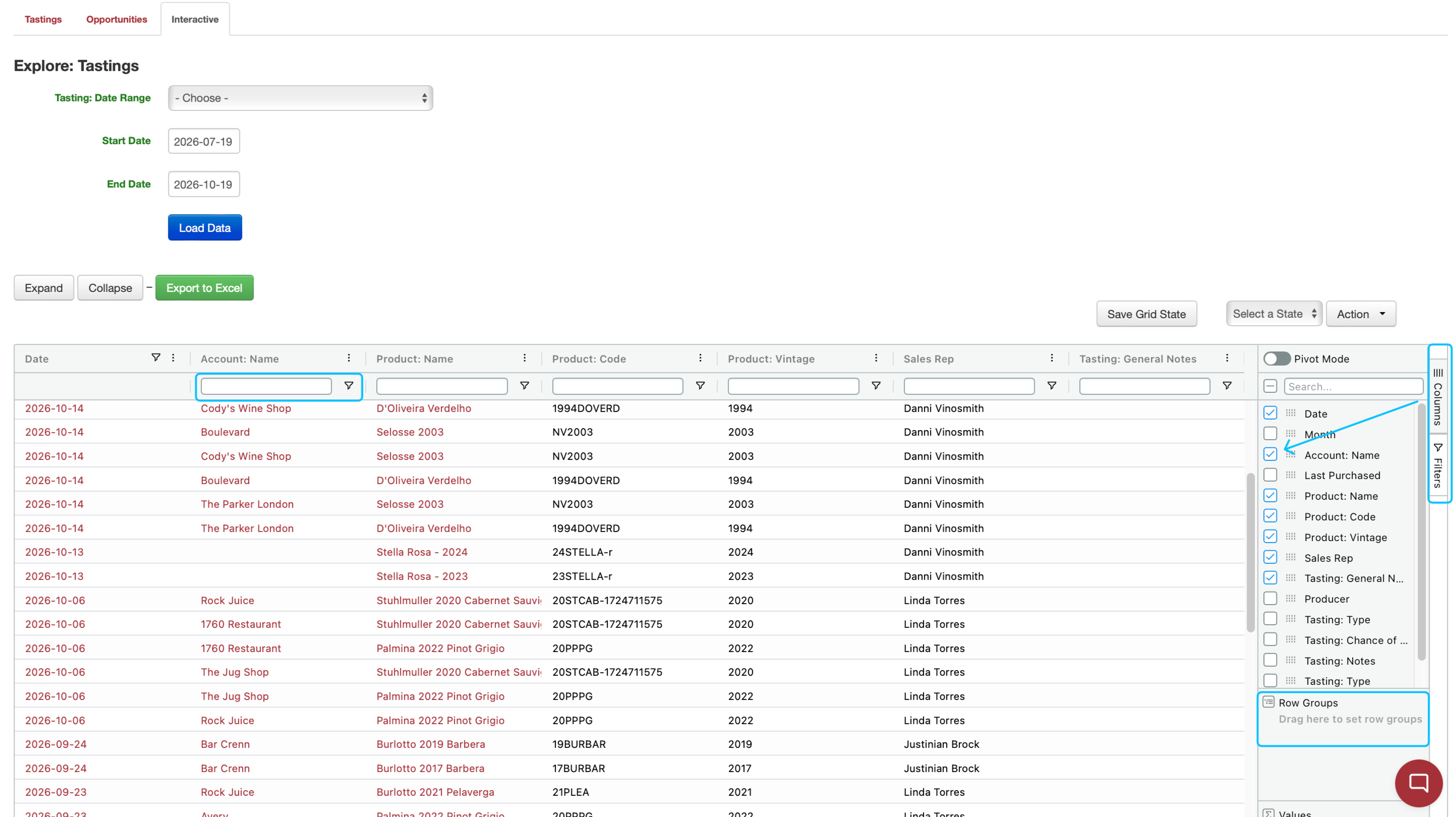
Customizing the Columns
On the far right of the screen, click Columns
A menu will open where you can choose which columns you want to display
As you select or deselect options, the columns will update automatically
You can also change the order of the columns by dragging each item into your preferred position
Grouping Data
You can group your tasting data using any available column. To do this, drag the column name into the Row Groups Box
Filtering Data
You can filter your data by clicking the filter icon in a column header or by selecting filters (The filter icon looks like a funnel).
Select the filter icon you'd like to use and enter the information you're looking for
For example, you can enter an account's name to display tasting items only associated with that account.
Exporting Data
The Interactive Tastings Sheet tool exports the data currently displayed on the screen.
To export your data, click the green "Export to Excel" button at the top-left. The file will automatically download.
Create a Tasting for Products
You can create a Tasting Sheet from the items displayed after applying your filters. At the bottom of the page, click with "With Filtered Rows."
Clicking this button allows you to create a tasting with filtered items. You can include up to 50 items.